Browsers are forgiving. They'll render a page with unclosed tags, duplicate IDs and a <div> inside a <p>, and most of the time it looks fine. Until it doesn't: a layout that breaks only in one browser, a screen reader that skips a section, a form that submits the wrong field. Validation catches those problems while they're still cheap to fix.
This guide covers how to validate HTML and CSS, which errors actually matter, and how to work through a long list of messages without losing an afternoon.
Why validate at all?
- Fewer cross-browser surprises. Each browser repairs broken markup in its own way, so invalid HTML is a common cause of layouts that differ between engines.
- Better accessibility. Assistive technology relies on a correct DOM. Mis-nested lists, missing
altattributes and duplicate IDs referenced byaria-labelledbyall cause real problems. - Cleaner SEO signals. A stray
</head>or a<meta>tag in the body can make crawlers ignore metadata you thought was there. - Faster debugging. When something renders strangely, ruling out invalid markup first saves you from debugging the browser's repair job.
Step 1: Validate the HTML
The reference tool is the W3C Markup Validation Service. You can give it a URL, upload a file or paste markup. For a page on the public web, the URL option is quickest.
For pages that only exist on your machine or behind a login, validate the HTML the browser actually has. In Chrome, open DevTools, right-click the <html> element and choose Copy → Copy outerHTML, then paste it into the validator's Validate by Direct Input tab. Note that this is the DOM after scripts have run, which is usually what you want to check.
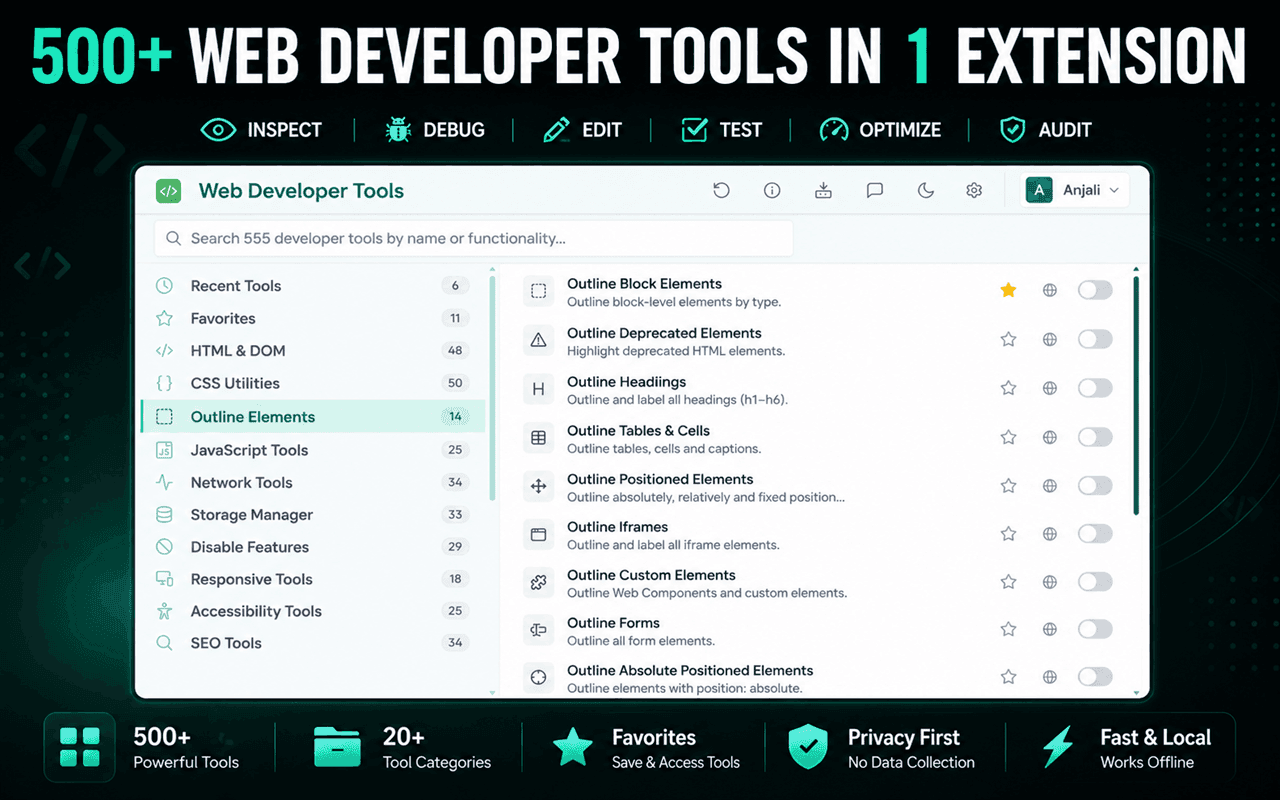
With Web Developer Tools, Validate HTML in the Generators & Validators category sends the current page to the validator in one click, and View Generated Source shows you the post-JavaScript markup if you want to read it first.
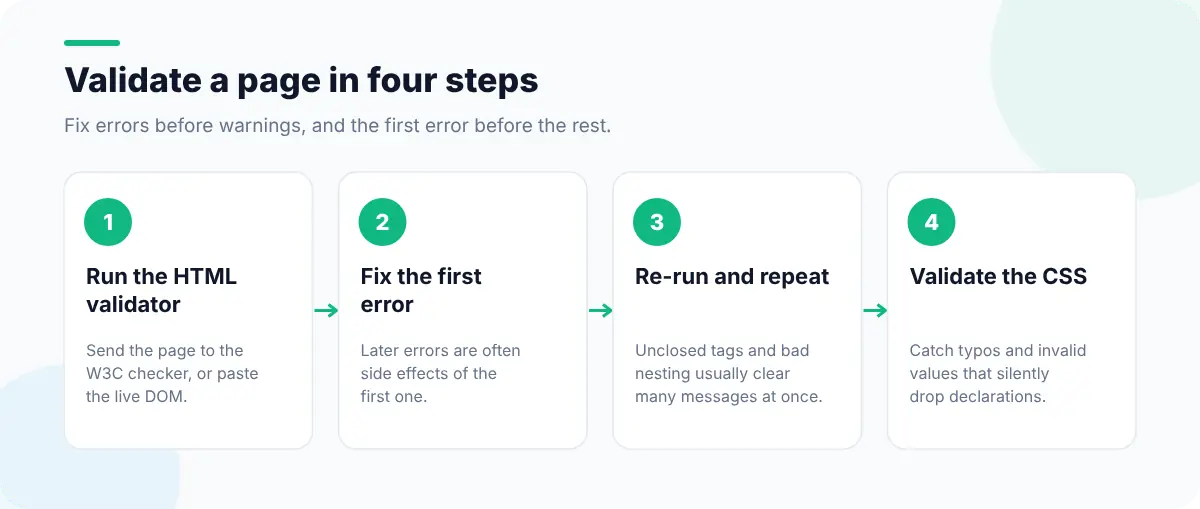
Step 2: Read the results in the right order
A long list of errors looks worse than it is. Validators report every consequence of a mistake, so one missing closing tag can produce twenty messages. Work like this:
- 1
Fix the first error first
Re-run after each fix. A missing
</div>near the top shifts the meaning of everything below it. - 2
Then structural errors
Unclosed elements, stray end tags and elements in places they aren't allowed.
- 3
Then attributes
Duplicate IDs, invalid attribute values, obsolete attributes.
- 4
Then warnings
Decide whether each one is deliberate. If it is, leave a comment in the code so the next person knows.
The errors you'll see most
| Message (paraphrased) | What it means | Typical fix |
|---|---|---|
End tag for div seen, but there were open elements | Something inside wasn't closed | Find the unclosed child, often a <p>, <li> or <a> |
Element div not allowed as child of element p | Block content inside a paragraph | Use a <div> wrapper, or turn the inner element into a <span> |
| Duplicate ID | Two elements share an id | Make IDs unique; use classes for styling |
An img element must have an alt attribute | Missing alternative text | Describe informative images; use alt="" for decorative ones |
Bad value for attribute href | Spaces or invalid characters in a URL | Encode the URL (spaces become %20) |
The center element is obsolete | Deprecated HTML | Replace with CSS such as text-align: center |
You can catch several of these before running the validator. Web Developer Tools has an Invalid HTML Nesting Detector, a Deprecated HTML Elements Detector, a Duplicate Attribute Detector and a Duplicate HTML IDs check that highlight problems directly on the page, which is often faster than matching line numbers.
<!-- Invalid: a list item outside a list, and a div inside a paragraph -->
<p>Shipping options <div class="note">Free over $50</div></p>
<li>Standard</li>

<!-- Valid -->
<div>
  <p>Shipping options</p>
  <div class="note">Free over $50</div>
  <ul>
    <li>Standard</li>
  </ul>
</div><p> before the <div>, which is why the note might not get the styles you expected.Step 3: Validate the CSS
The W3C also runs a CSS validator (jigsaw.w3.org/css-validator). It catches typos in property names, invalid values and syntax errors that silently drop a whole declaration. In Web Developer Tools, Validate CSS sends the current page's styles there.
Be ready for noise. CSS validators can lag behind new features, so modern syntax such as container queries, :has() or cascade layers may be flagged even though browsers support it. Check anything surprising on Can I use before you change it.
Make validation part of your routine
- Validate templates, not every page. Most markup comes from a handful of templates and components. Fix them once and every page benefits.
- Add an HTML linter to your editor or CI so new mistakes are caught before review.
- Re-check after CMS or framework upgrades, which can change generated markup.
- Pair validation with an accessibility pass. Our accessibility testing checklist picks up where the validator stops.
Once the markup is valid, check that the page looks right when it renders: debugging CSS layout with outlines is the next step. If you'd rather tweak the page visually and see the result, the Edit Page guide to inspecting and editing HTML and CSS shows a point-and-click approach.