Low-contrast text is one of the most common accessibility failures on the web, and one of the easiest to fix. Light grey body copy, placeholder text used as labels and white text over photos all make pages harder to read for people with low vision, for anyone on a phone in sunlight, and for everyone who's tired.
Here's how contrast is measured, what the targets are, and how to check every piece of text on a page rather than guessing.
What the contrast ratio means
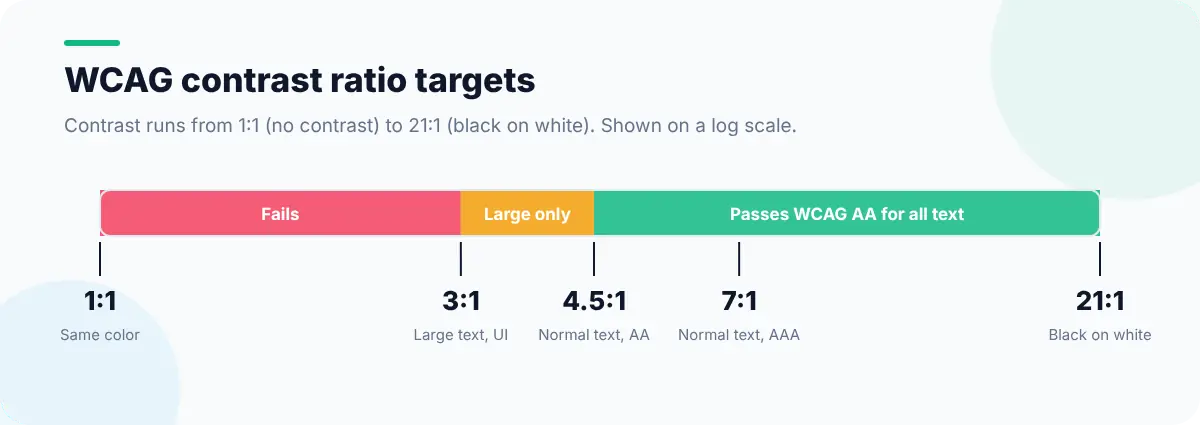
Contrast ratio compares the relative luminance of the text color and the background color. It runs from 1:1 (identical colors) to 21:1 (black on white). The Web Content Accessibility Guidelines set two levels:
| Text | WCAG AA (minimum) | WCAG AAA (enhanced) |
|---|---|---|
| Normal text | 4.5:1 | 7:1 |
| Large text (about 24px regular, or 18.66px bold and up) | 3:1 | 4.5:1 |
| UI components and meaningful graphics (borders of inputs, icons) | 3:1 | — |
Method 1: Check one element in DevTools
- 1
Inspect the text
Right-click it and choose Inspect.
- 2
Open the color picker
Click the small swatch next to
colorin the Styles pane. - 3
Read the ratio
Chrome shows the contrast ratio with AA and AAA checkmarks, and draws lines where the color would need to be to pass.
- 4
Adjust until it passes
Drag the color below the line, then copy the new value into your code.
This is precise, but it's one element at a time, and it can't always work out the background when text sits on an image or a gradient.
Method 2: Check the whole page at once
To find every low-contrast element in one pass, use a page-level check:
- Lighthouse (Accessibility category) lists elements whose contrast is too low.
- Chrome's CSS Overview panel has a Contrast issues section grouped by color pair.
- In Web Developer Tools, Detect Low Contrast outlines failing text right on the page, the Contrast Ratio Checker tests any pair of colors, and the Color Contrast Matrix shows how every color in the page's palette performs against every other, which is ideal when you're choosing colors for a design system.

Method 3: Simulate color vision deficiencies
Contrast ratios don't tell the whole story. If a chart, a status badge or a form error relies on red versus green alone, some people can't tell the difference at all. Two ways to check:
- Chrome DevTools: open the Command Menu (
Ctrl+Shift+P), run Show Rendering, and use Emulate vision deficiencies. - Web Developer Tools: Simulate Protanopia, Simulate Deuteranopia and Simulate Tritanopia apply a filter to the current page, and Color Blindness Preview shows the palette under each type.
How to fix low contrast without wrecking the design
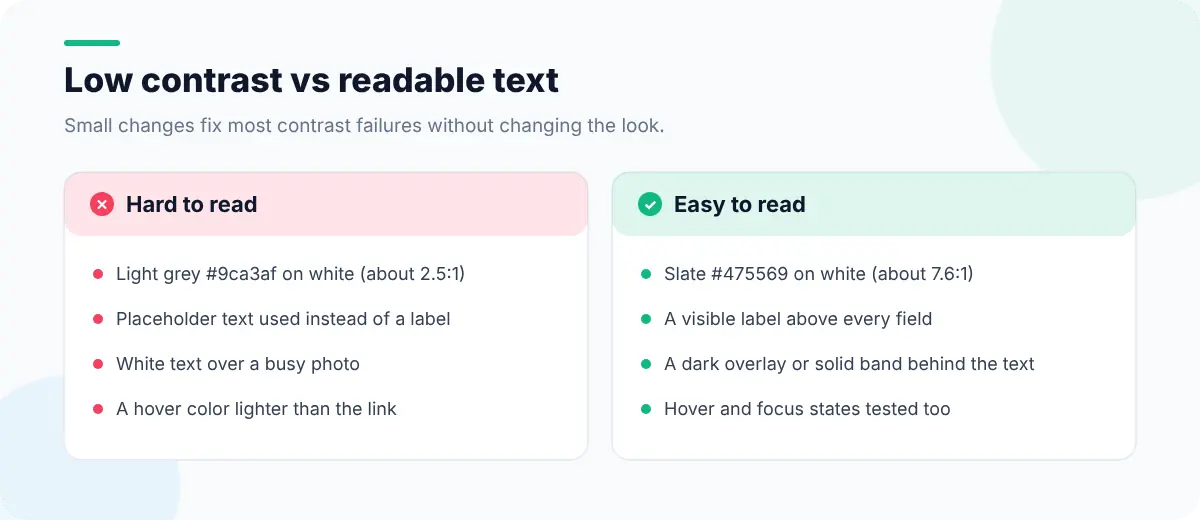
- 1Darken the text before you lighten the background. Moving body text from
#9ca3afto#475569keeps the same grey feel and jumps from about 2.5:1 to over 7:1 on white. - 2Keep brand colors for large elements. A light brand color can still work for big headings and illustrations, where the 3:1 large-text threshold applies.
- 3Add an overlay behind text on images. A semi-transparent dark layer, or a solid band, makes the result predictable whatever the photo.
- 4Don't rely on placeholders. Placeholder text is usually low contrast by design and disappears as people type. Use visible labels.
- 5Check hover, focus and disabled states too. A link that passes at rest can fail when its hover color is lighter.
- 6Check dark mode separately. A palette that passes in light mode can fail when the colors invert.
:root {
  --text: #1e293b;      /* 14.6:1 on white */
  --text-muted: #475569; /* 7.6:1 on white  */
  --brand: #047857;      /* 5.5:1 on white  */
}

.hero-text {
  /* readable on any photo */
  background: linear-gradient(rgb(0 0 0 / 0.55), rgb(0 0 0 / 0.55));
  color: #fff;
}Make contrast part of the design system
The most reliable fix is upstream: when every text color in your tokens already passes against the backgrounds it's used on, new pages pass by default. Test each token pair once with a contrast matrix, document the allowed combinations, and re-test whenever the palette changes. The CSS debugging guide explains how to find which rule is setting a color when the value isn't the one you expect.
Contrast is one item on a longer list: our accessibility testing checklist covers keyboard, screen reader and form checks. For a visual way to find a page's colors and fonts first, see Edit Page's guide to finding the fonts and colors on any website.