"The button looks a bit big" isn't a useful bug report. "The button is 52px tall and the design says 44px" is. Measuring elements is how designers check a build, how developers confirm a fix, and how everyone stops arguing about whether something is "slightly off".
What you can measure, and with what
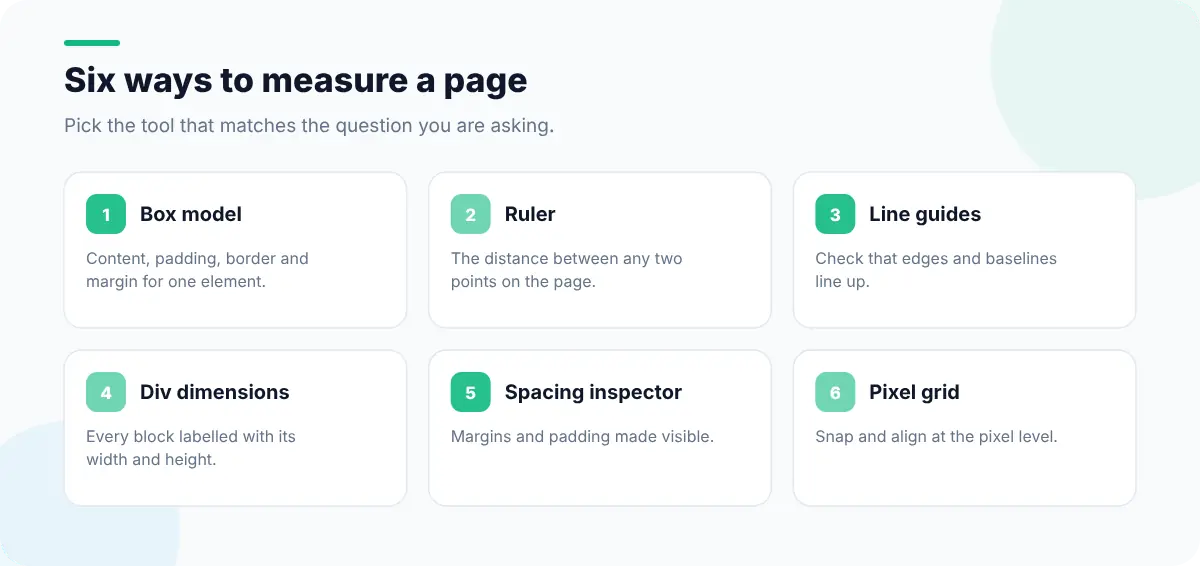
Measure one element: the box model
Select an element in DevTools and open the Computed tab. The box model diagram shows content size, padding, border and margin, and hovering each layer highlights it on the page. Hovering an element with the inspector picker also shows a tooltip with its exact rendered width and height.
Measure anything: a ruler
Sometimes you want the distance between two things that aren't the same element: the gap between a heading and an image, or the space from the edge of the screen to a card. A ruler is quicker than doing the subtraction.
- 1
Open the Ruler
In Web Developer Tools, Browser Environment → Ruler draws a measuring box you can drag anywhere on the page.
- 2
Drag from edge to edge
The width and height update as you drag, in CSS pixels.
- 3
Compare with the design
If your design tool uses a different scale (for example a 2× artboard), divide accordingly.
Check alignment with guides
Alignment bugs are hard to see by eye: a text column that starts 3px further left than the image above it, or icons that don't share a baseline. Line Guides lets you drop horizontal and vertical lines across the page, like the guides in a design tool, so misalignments become obvious. Baseline Grid Overlay and Pixel Grid Overlay help with vertical rhythm and pixel snapping.
Measure many elements at once
- Display Div Dimensions labels every block with its width and height, which is handy when checking a grid of cards.
- Spacing Inspector, Margin Inspector and Padding Inspector visualize spacing so inconsistent gaps stand out.
- Typography Inspector, Line Height Inspector and Typography Scale Viewer show the type sizes in use, which makes it easy to spot a one-off 15px in a 14/16/20 scale.
- Display Image Dimensions shows natural versus rendered image sizes, a quick way to find oversized images.
// Width and height of the element selected in the Elements panel
const r = $0.getBoundingClientRect();
console.log(Math.round(r.width), "x", Math.round(r.height));

// Gap between two elements, top to top
const [a, b] = document.querySelectorAll(".card");
console.log(b.getBoundingClientRect().top - a.getBoundingClientRect().bottom, "px gap");
$0 is the element currently selected in DevTools.A design QA routine
- 1Check the page at the exact viewport width the design was made for.
- 2Measure the container width and outer margins first; everything else depends on them.
- 3Check the type scale and line heights before individual spacings.
- 4Use guides to confirm left edges and baselines line up.
- 5Measure spacing between sections, then within components.
- 6Repeat at your main breakpoints. Our guide to testing responsive design covers which widths to choose.
If a measurement reveals something wider than its parent, debugging CSS layout with outlines shows how to track down the cause. Want to try the fix visually before writing CSS? Edit Page's guide to editing a webpage in your browser shows how to change sizes and spacing directly on the page.