Forms are where websites make money and where they break. A sign-up that rejects a valid email, a checkout that loses its data on a back button, a contact form that submits twice: each one costs real users. Yet form testing is often a quick happy-path click before launch.
Here's a fast, repeatable way to test web forms properly, without typing the same fake address forty times.
1. Fill forms in seconds
The biggest reason forms go under-tested is the typing. Remove it:
- Your browser's autofill works for common fields, but fills your real details.
- In Web Developer Tools, Populate Form Fields fills every field with realistic test values, Clear Form Fields resets them, and Fake Data Generator and Test Credit Card Generator produce values for specific fields such as names, addresses and the card numbers payment providers publish for testing.
- Check All Checkboxes, Uncheck All Checkboxes and Clear Radio Buttons set up edge cases in one click.
2. Test validation from both sides
Client-side validation (required, type="email", maxlength, pattern) is for the user's convenience. Server-side validation is for safety. You need to test both, and the second one means getting past the first.
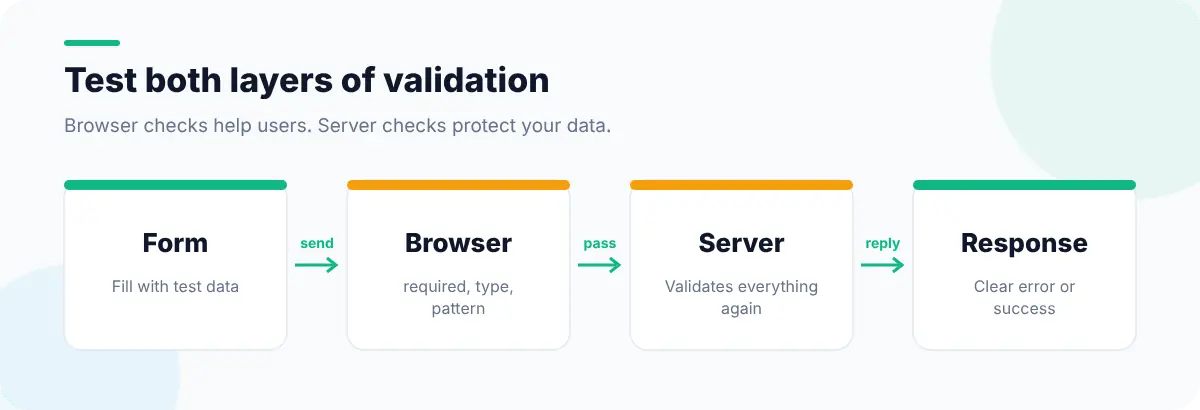
- 1
Try the obvious mistakes
Empty required fields, an email without @, a phone number with letters, a date in the past. Check that each message is clear and appears next to its field.
- 2
Remove browser validation
Use Remove Form Validation and Remove Maximum Lengths (or delete the attributes in DevTools), then submit the same bad input.
- 3
Check the server's answer
The server should reject it with a useful error, not a 500 page and not a silent success. Watch the request in the Network panel.
- 4
Try hostile input
Very long strings, emoji, leading spaces,
<script>text and SQL quotes should all be stored or rejected safely and displayed escaped.
Enable Form Fields is useful here too: it re-enables disabled fields so you can confirm the server ignores values the UI was supposed to prevent.
3. Check labels and accessibility
Every field needs a programmatic label, not just nearby text. Screen readers announce the label when a field gets focus; without it, users hear only "edit text".
- Outline Fields Without Labels highlights every unlabeled input on the page.
- Form Accessibility Audit checks labels, required indicators and error associations.
- Error messages should be linked to their field with
aria-describedby, and the first error should receive focus after a failed submit. - Tab through the whole form. The order should match the visual order, and nothing should trap focus.
<label for="email">Email</label>
<input id="email" name="email" type="email"
       autocomplete="email" required
       aria-describedby="email-error">
<p id="email-error" class="error" hidden>Enter an email like name@example.com</p>4. Check autocomplete and input types
Correct autocomplete tokens let browsers and password managers fill forms accurately, which is faster for users and reduces errors. The right type (email, tel, number, url) brings up the right mobile keyboard.
| Field | type | autocomplete |
|---|---|---|
email | email | |
| New password | password | new-password |
| Current password | password | current-password |
| Phone | tel | tel |
| Street address | text | street-address |
| One-time code | text | one-time-code |
Highlight Autocomplete-Off and View Autocomplete-Off Fields show where autocomplete has been disabled, which is often an old habit that makes forms harder to use. Duplicate Name Attribute Detector catches two fields that would overwrite each other on submit.
5. Test the states people forget
- Double submit: click the button twice quickly. You should get one order, not two.
- Back button: submit, go back, and check whether the data is still there (and whether resubmitting is handled).
- Slow network: throttle to a slow connection in DevTools and check the button shows a loading state.
- Session expiry: clear cookies mid-form and submit. Users should get a clear message, ideally without losing what they typed.
- Password fields: Display Passwords reveals masked values so you can confirm what's actually being sent.
Forms often store state in cookies or local storage; inspecting local storage, session storage and cookies shows how to check and reset it. For the full pre-launch pass, use the website QA checklist, and for the accessibility side, the accessibility testing checklist.