Three ways, depending on what you need.
1. For one site, permanently (Chrome Settings)
- 1Open the site you want to block
- 2Click the icon to the left of the address bar (the tune/sliders icon, or the padlock on older versions)
- 3Choose Site settings
- 4Scroll to JavaScript and set it to Block
- 5Reload the page
The setting sticks until you change it back. You can also get there directly by pasting chrome://settings/content/javascript into the address bar, where Not allowed to use JavaScript lets you add site patterns like https://example.com or [*.]example.com.
2. For the current tab, temporarily (DevTools)
- 1Press
F12to open DevTools - 2Press
Ctrl+Shift+P(Cmd+Shift+Pon macOS) to open the command menu - 3Type
javascript, choose Disable JavaScript, press Enter - 4Reload the page
A warning triangle appears in the Sources panel while it's active. This one is scoped to the tab and only lasts while DevTools is open, which makes it the right choice for a quick test and the wrong choice if you're about to close DevTools and forget.
3. Per site, from a toggle you can reach in a second
Both of the above work. Both take more clicks than they should if you're flipping JavaScript on and off repeatedly, which is what testing actually involves.
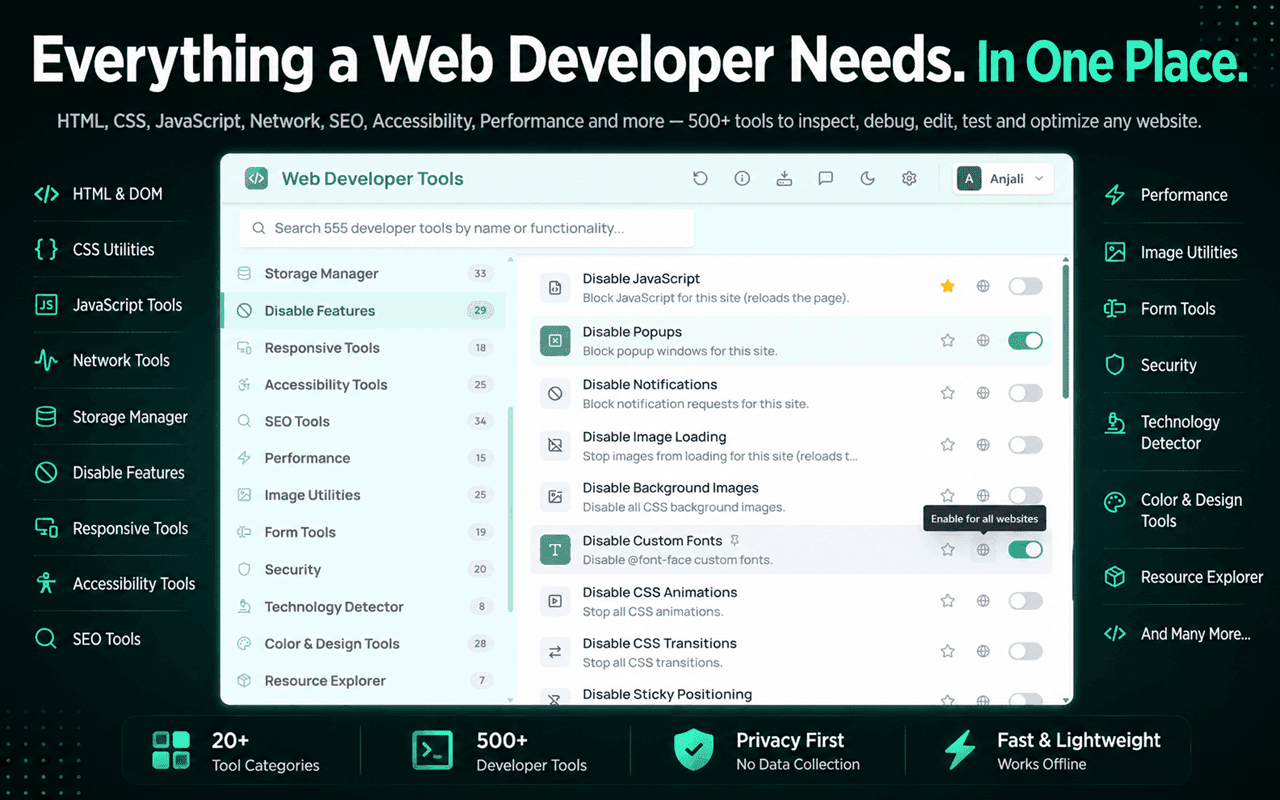
That's what the Disable JavaScript switch in Web Developer Tools is for. It applies to the current site, reloads the page for you, and stays visibly on so you always know which state you're in. Twenty-nine other switches live in the same Disable Features category for the same style of testing: block images, block custom fonts, stop CSS animations, disable service workers, block localStorage, sessionStorage or IndexedDB.
Why you'd actually want to do this
Checking what crawlers and previews see
Googlebot renders JavaScript, but not instantly and not always completely. Social preview scrapers, link unfurlers in chat apps and plenty of smaller crawlers don't render it at all. Loading your page with JavaScript off shows you the document those clients receive. If your product page is blank without JS, that's worth knowing.
This is the same distinction covered in the technical SEO checklist: what the server sends and what the browser eventually shows are two different documents.
Testing progressive enhancement
A form that only submits through fetch fails for anyone whose script didn't load, and script loads fail more often than you'd think: flaky mobile connections, corporate proxies, a CDN having a bad afternoon. Turning JS off tells you whether your core flows degrade or collapse.
Isolating a bug
If a layout breaks and you can't tell whether CSS or a script is responsible, removing one of the two variables settles it in seconds.
Reading a page that won't let you
Scroll-jacking, modal traps, content that vanishes behind an overlay. Without JavaScript, a lot of that machinery simply doesn't run.
Measuring how much JavaScript costs you
Loading a page with scripts blocked gives you a rough floor for how fast it could be. If the no-JS version paints in 400ms and the real one takes four seconds, you know where to spend your performance budget.
What breaks, and what that tells you
| Symptom with JS off | What it means |
|---|---|
| Completely blank page | Client-side rendering with no server-rendered fallback |
| Content there, navigation dead | Links implemented as onclick handlers instead of <a href> |
| Images missing | Lazy loading with no <noscript> fallback and no native loading="lazy" |
| Forms do nothing | No action attribute; submission handled entirely in JS |
| Page loads then hides itself | A cookie banner or paywall that fails open, then closed |
| Everything works | Genuine progressive enhancement, which is rarer than it should be |
Turning it back on
Same route in reverse. Site settings → JavaScript → Allow, or untick Disable JavaScript in DevTools, or flip the toggle back off. If you blocked a site in chrome://settings/content/javascript, remove it from the Not allowed list; a blanket block set weeks ago is a classic source of "this site is broken in Chrome but fine in Firefox."
A note on what "disabled" actually means
Blocking JavaScript stops scripts from executing in the page. It does not stop the browser from fetching those files in every case, it doesn't affect service workers already installed unless you unregister them, and it doesn't remove anything the server rendered into the HTML.
So if you're checking whether some data is truly server-rendered, disabling JavaScript is a good test. If you're checking whether a tracking pixel fires, look at the Network panel instead, because the request may still go out.
Once you've got a page loading without scripts, it's a good moment to check for the other things that quietly fail: broken links, missing images and console errors tend to show up together.