A button that does nothing, a form that won't submit, a page that's blank in one browser. Behind most of these is a JavaScript error that someone, somewhere, saw in red in the Console and scrolled past. Debugging is mostly a matter of reading that error properly and following it to the line that caused it.
Step 1: Read the error properly
Open the Console (Ctrl+Shift+J, or Cmd+Option+J on a Mac). Each error has three parts worth reading:
- The type and message:
TypeError: Cannot read properties of undefined (reading 'map')tells you a value wasundefinedwhen the code expected an array. - The location: the file and line on the right. Click it to jump to the source.
- The stack trace: expand the error to see the chain of calls that led there. The top frame in your own code (not a library's) is usually where to look.
Step 2: Pause at the problem
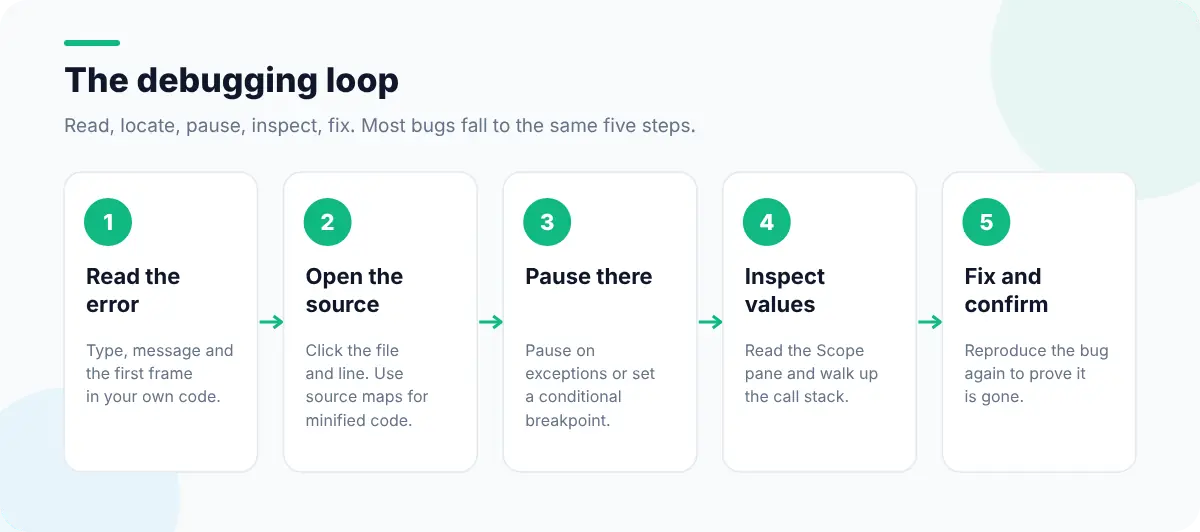
- 1
Pause on exceptions
In Sources, open the Breakpoints section and tick Pause on uncaught exceptions. Reload and trigger the bug; execution stops on the throwing line.
- 2
Inspect the scope
Hover variables or read the Scope pane to see what each value actually was, rather than what you expected.
- 3
Step backwards in the call stack
Click earlier frames in the Call Stack to see where the bad value came from.
- 4
Use a conditional breakpoint
Right-click a line number and add a condition such as
items === undefinedto stop only when it matters.
// A logpoint without editing code: right-click a line → Add logpoint
// and enter an expression like:
"cart:", cart, "items:", cart?.items?.length

// Or pause from the code itself while debugging locally
debugger;Step 3: Catch the errors that don't show
Some failures never appear as a clear red error:
- Unhandled promise rejections from failed
fetchcalls orasyncfunctions without acatch. They appear as "Uncaught (in promise)" and are easy to miss. - Errors swallowed by `try/catch` that log nothing.
- Errors before you opened DevTools. By then the Console is already full, or the error happened during page load.
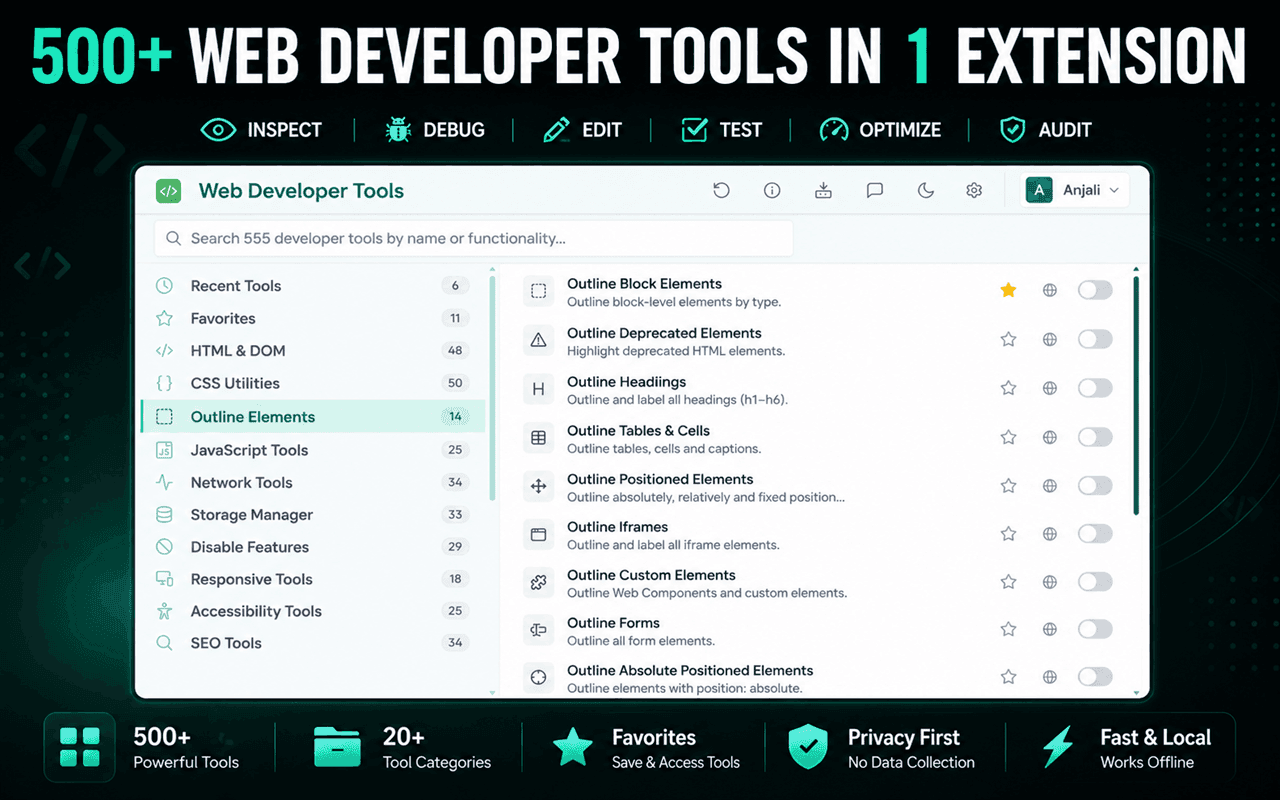
In Web Developer Tools, View Console Errors lists errors the page has thrown, Unhandled Promise Rejections collects the async ones, Capture Console Logs records output while you reproduce a bug, and JavaScript Error Timeline shows when each error happened, which helps tie errors to user actions.
The five errors you'll see most
| Error | Usual cause | Fix |
|---|---|---|
Cannot read properties of undefined/null | Data not loaded yet, or a selector matched nothing | Check the value before using it (?.), wait for data, or fix the selector |
x is not a function | Wrong import, a typo, or a variable shadowing a function | Log typeof x; check the import or name |
x is not defined | A script loaded in the wrong order, or a missing import | Load dependencies first; check the bundle |
Failed to fetch / CORS error | Network failure, or the server doesn't allow your origin | Check the request in Network; fix CORS headers on the server |
Unexpected token '<' | Code expected JSON but got an HTML error page | Open the request in Network and read what the server actually returned |
Find the code behind a click
When a button misbehaves, you need the handler attached to it. In DevTools, select the element and open the Event Listeners tab. In Web Developer Tools, Find Event Listeners and Inspect Event Listeners list them, and Highlight Inline Events outlines elements using old-style onclick attributes. Detect Framework tells you which framework is running, which tells you which devtools extension will help next.
For more DevTools shortcuts that speed this up, see the Chrome DevTools tips. Working with API responses? The guide to formatting and validating JSON helps you read what the server sent.